Enjoy MyRepublic Everywhere with these simple steps on how to purchase a travel eSIM! 🌏✈📱
🛒 How to purchase an eSIM
1. Visit the MyRepublic Everywhere Order Portal. You can download the app from the Google Play Store or Apple App Store.
2. Select eSIM
3. Search for the country where you want to travel to and click Next.
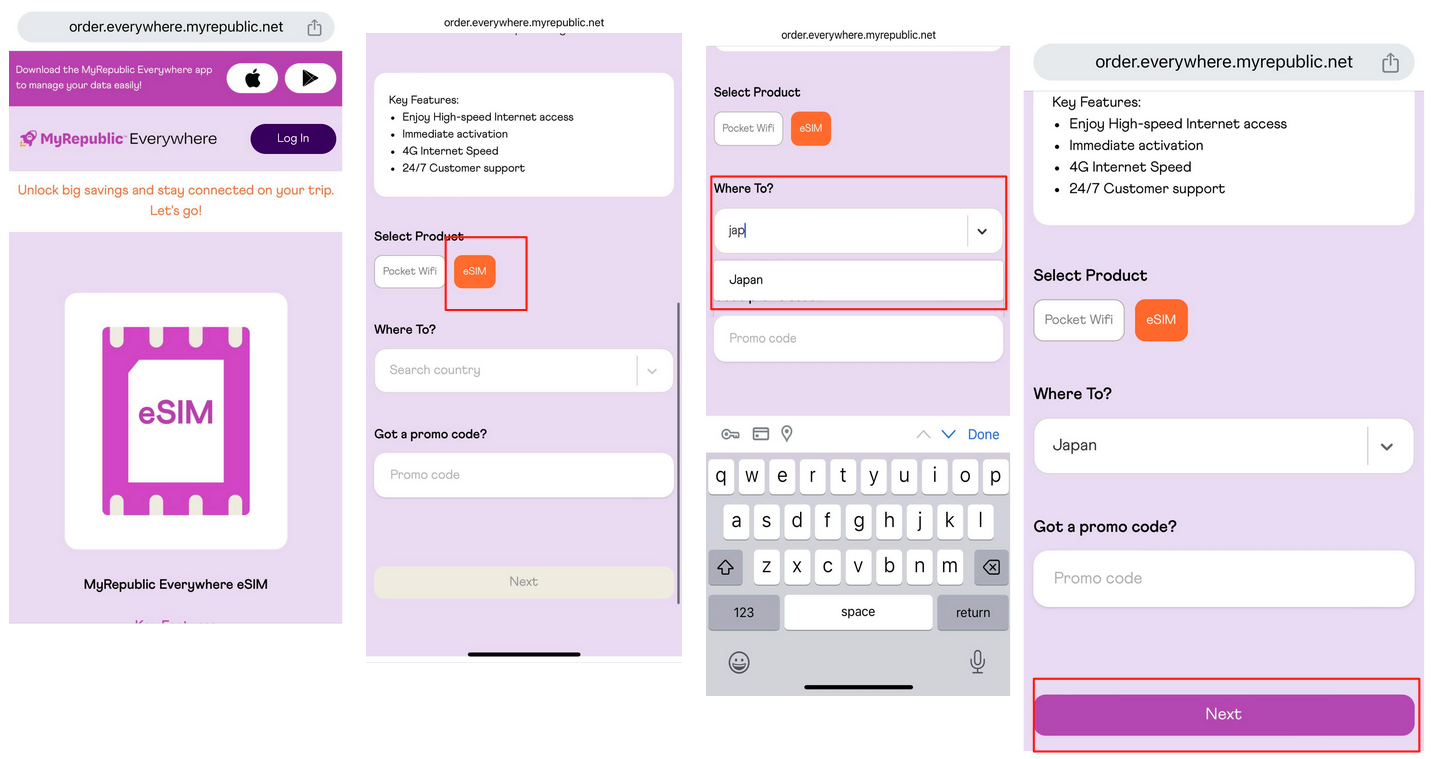
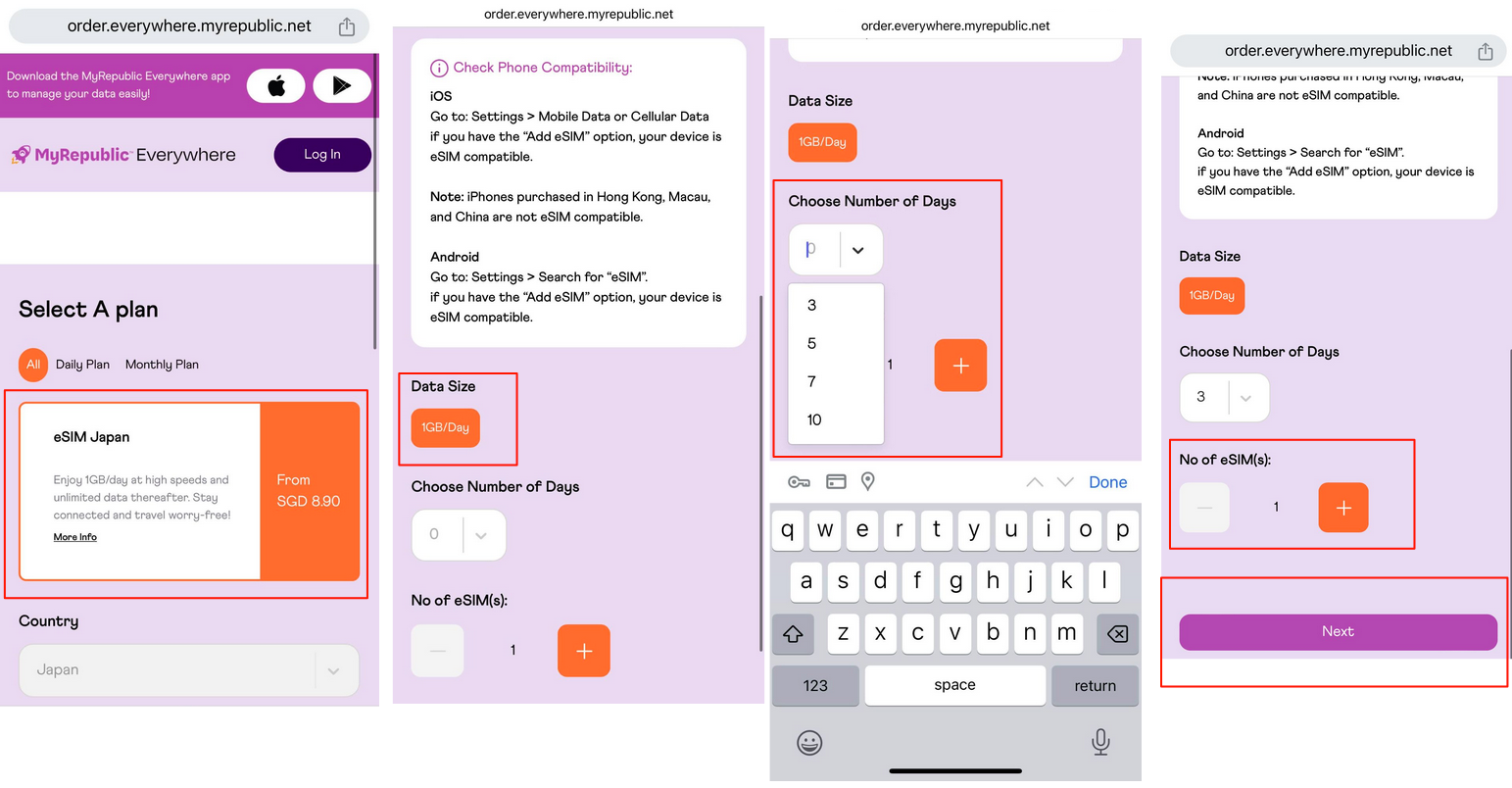
4. In the next page, select the eSIM plan that suits you. In this case, it’s the Japan eSIM.

5. Choose your data size and the preferred validity of your eSIM.
6. If you’re traveling for the weekend, you can choose the 3-day option.
You can even choose to buy more than one eSIM at the same time and then click Next.
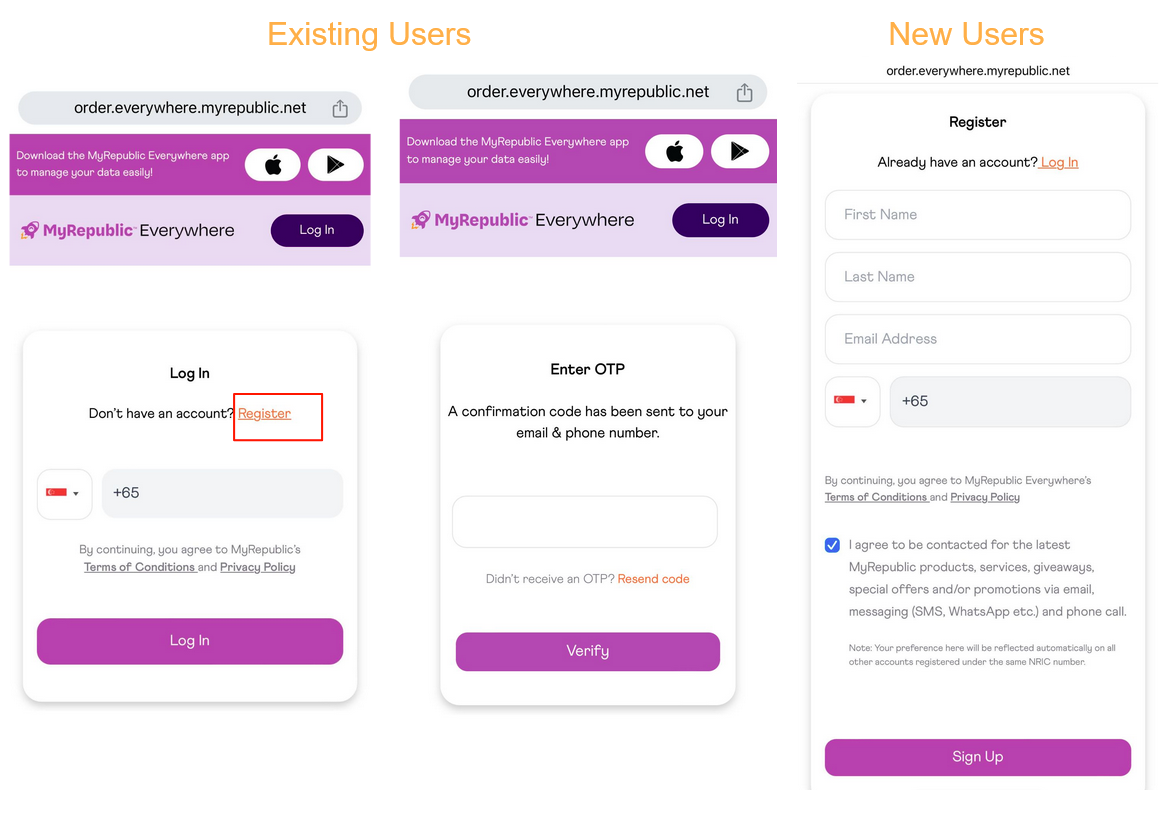
7. You will be prompted to Log in using your registered mobile number.
8. You can enter the OTP sent to your registered mobile number or email address and log in, if you already have an account with MyRepublic Everywhere.
Please ensure that your email address and mobile number are accurate, to receive OTPs and receipts.
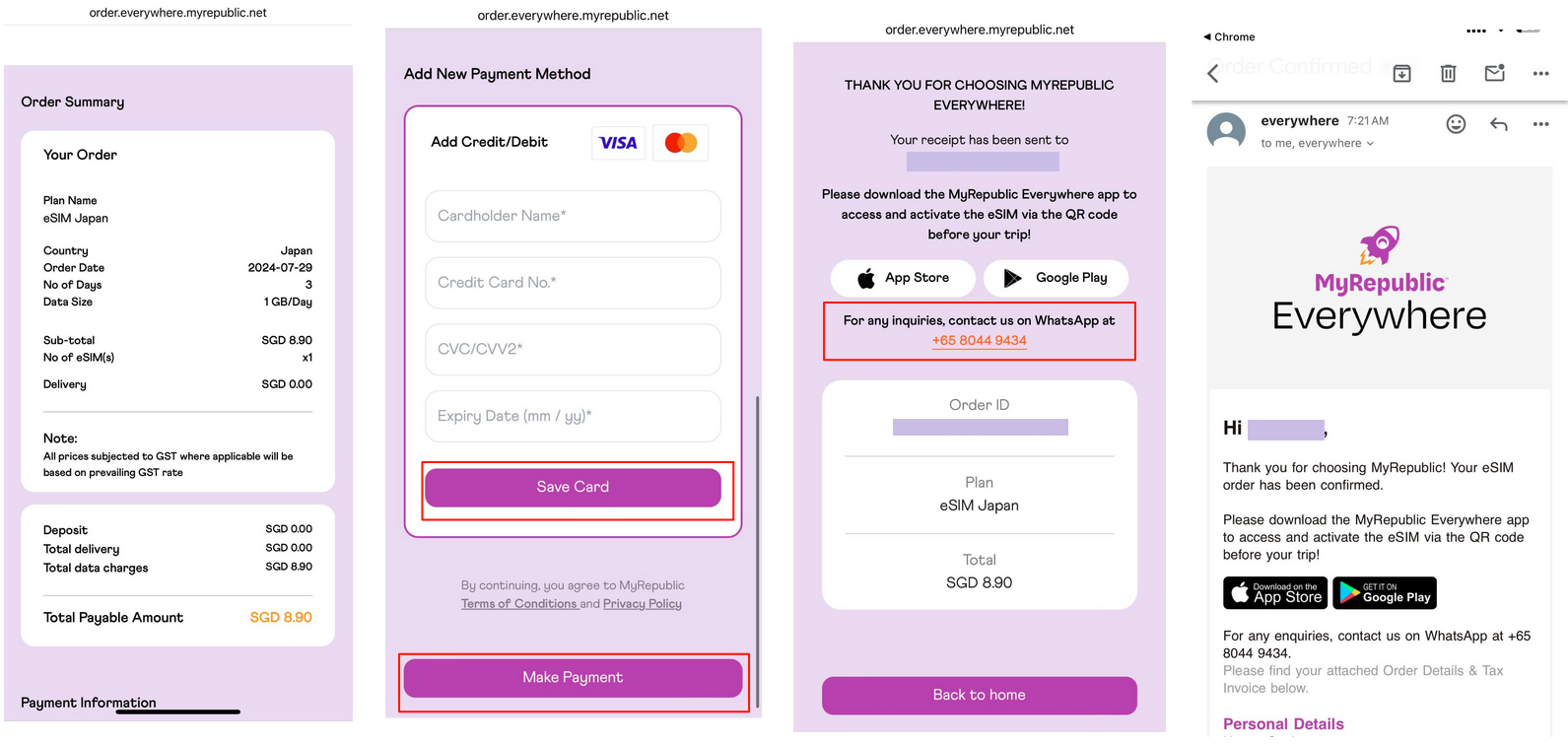
9. Once you have logged in, you will be taken to the order summary page.
10. You can add your Debit Card or Credit Card details here and complete your purchase.
🥳 Success! You have now unlocked seamless roaming data for your trip! 🎉🧳🛬
🔔 You will also receive the Order Confirmation email and invoice. 📨
📲 How to Activate the eSIM
1. To activate the eSIM, download and launch the “MyRepublic Everywhere” App on your phone. You can download the app from the Google Play Store or Apple App Store.
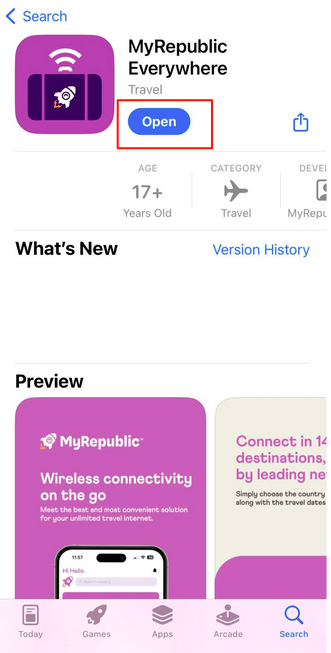
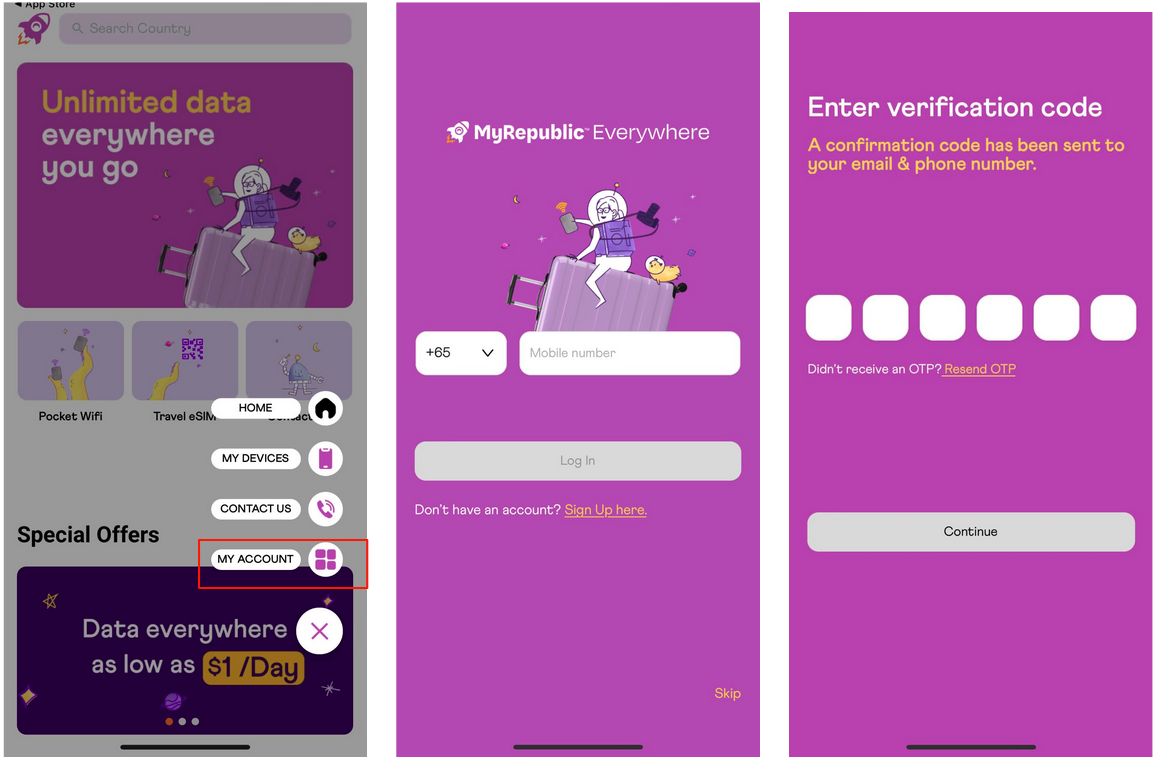
2. Open the app and Click on the “Home” button and then on “My Account”
3. Enter your registered mobile number to Log In
4. Key in the OTP sent to your email and phone number to log in
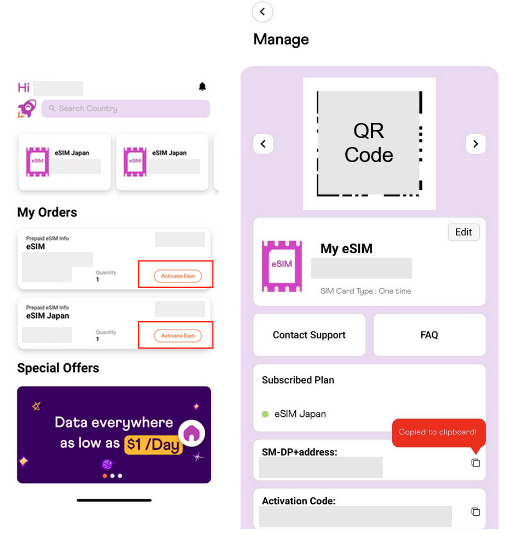
5. On the homepage, scroll down to find your latest eSIM order
6. When you are ready to activate and install your eSIM, click on the “Activate eSIM” button.
7. Once activated, your eSIM QR code will be displayed and is ready for installation.
📱 How to install the travel eSIM on your iPhone
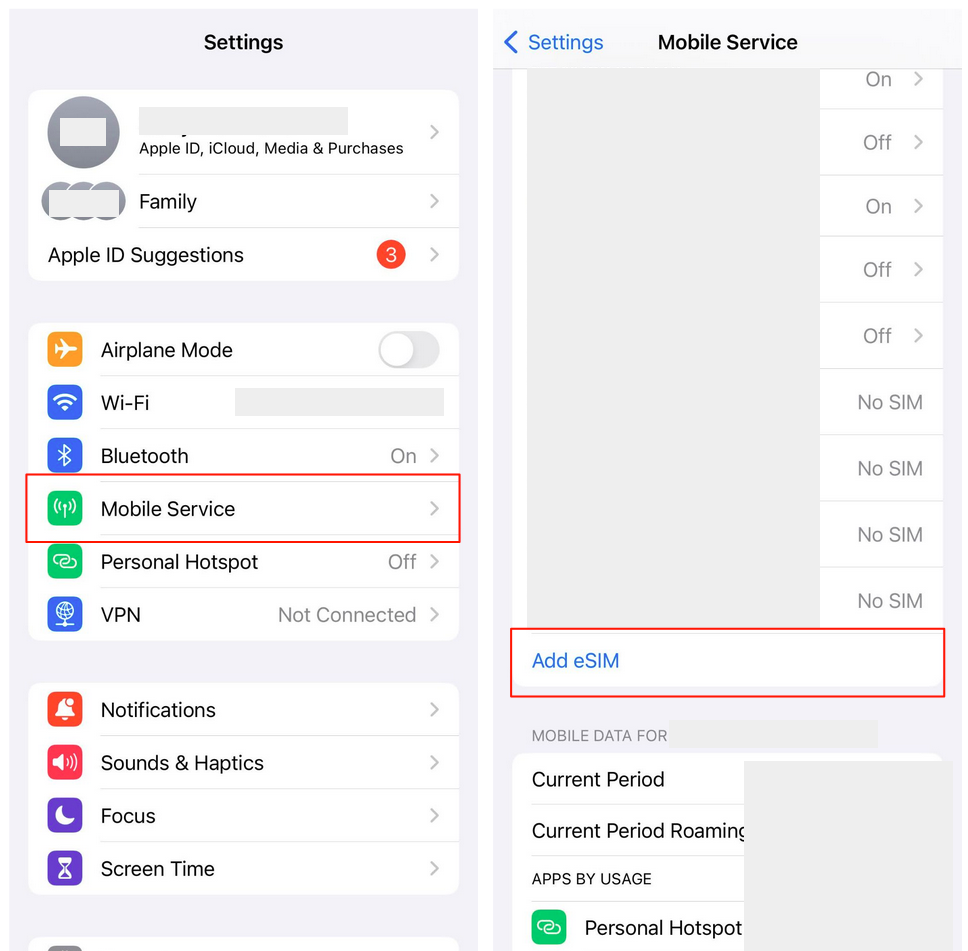
1. Go to the Settings app and click on “Mobile Service”.
2. Tap on “Add eSIM”.
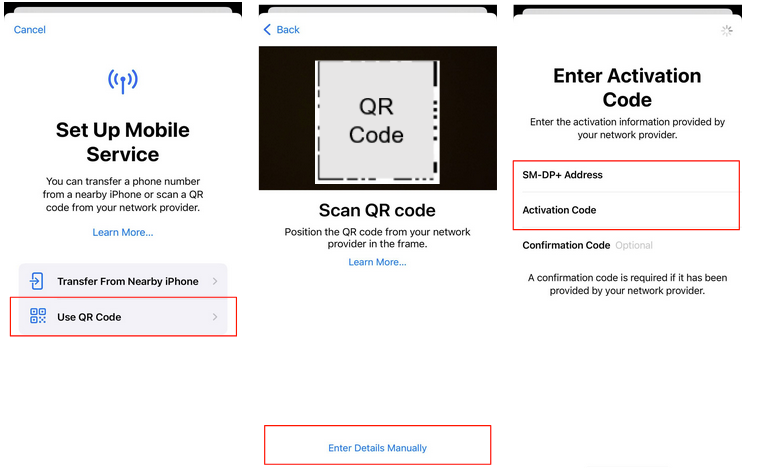
3. Tap on “Use QR Code”
You can scan the QR code or Enter Details Manually by pasting the SM-DP+ Address and Activation Code as displayed on the MyRepublic Everywhere App
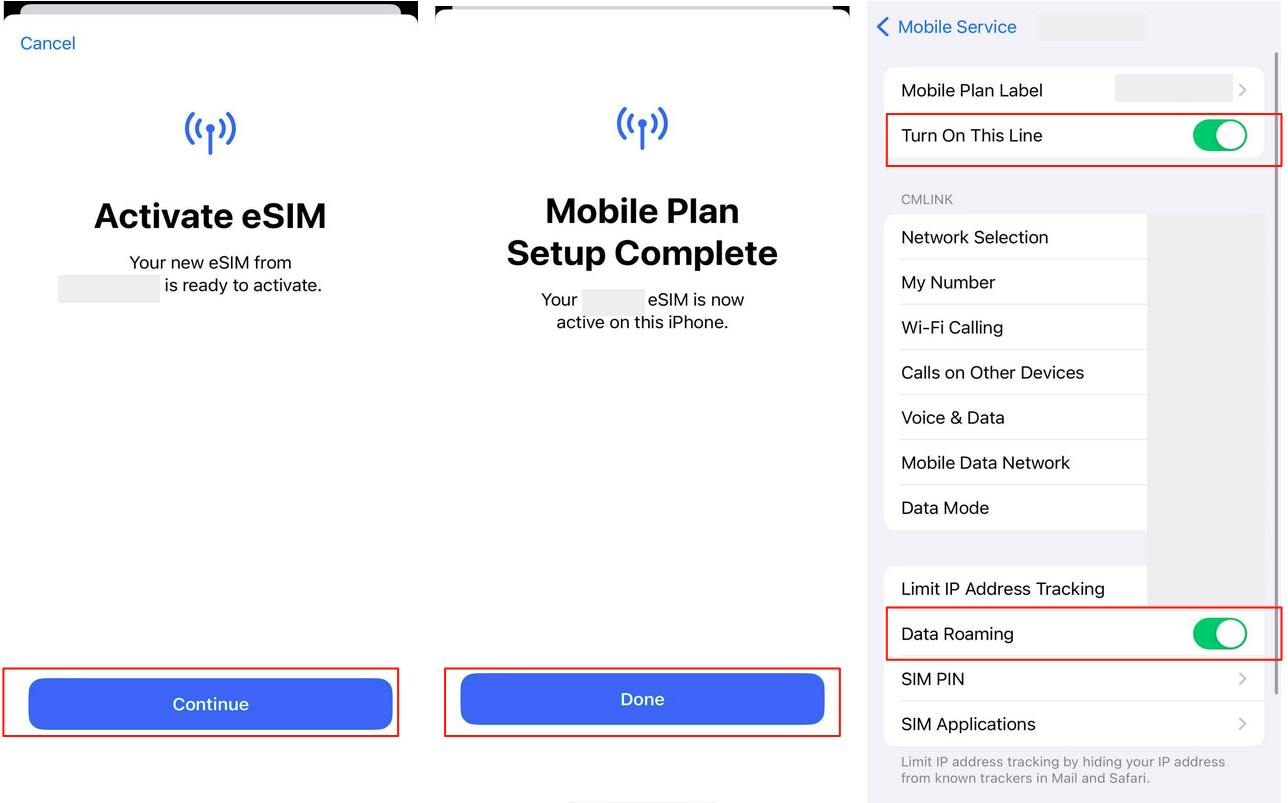
4. Activate your eSIM, tap on "Continue" then "Done"
5. On your Settings app, go to Mobile Service and enable “Turn On This Line” and “Data Roaming” to ensure you are connected.
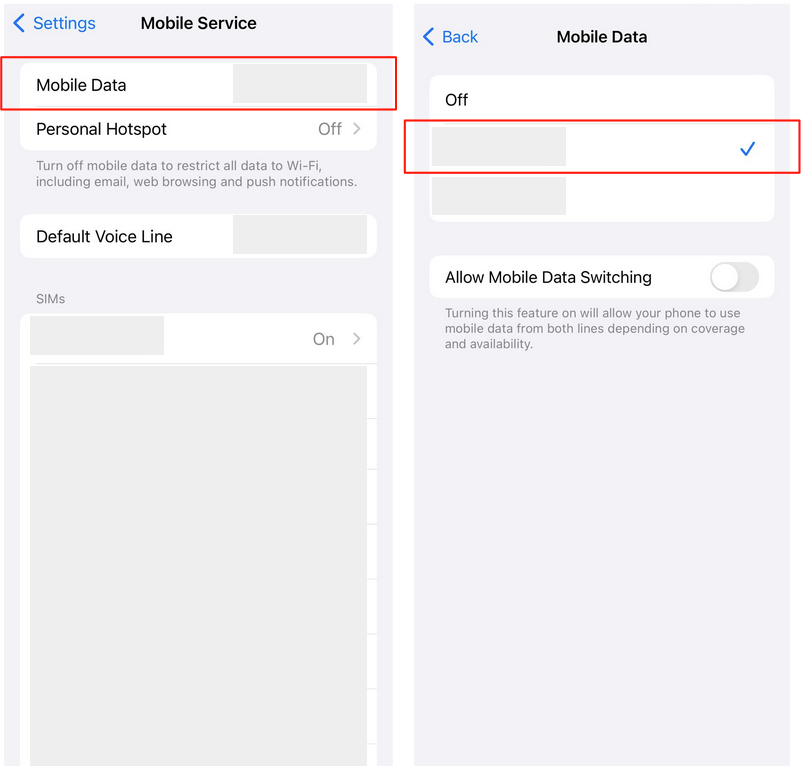
6. Set your phone’s mobile data to the newly installed MyRepublic everywhere Travel eSIM to ensure that you don’t incur roaming charges on your primary number!
🧾 For the full FAQ article of MyRepublic Everywhere, please click here.