You may refer to our quick guide below if you are not able to hook on to any roaming network.

1. Check that you have enabled roaming on your mobile app
To activate roaming on your mobile app: Click "CUSTOMISE MY ROAMING" > Toggle roaming service on or off
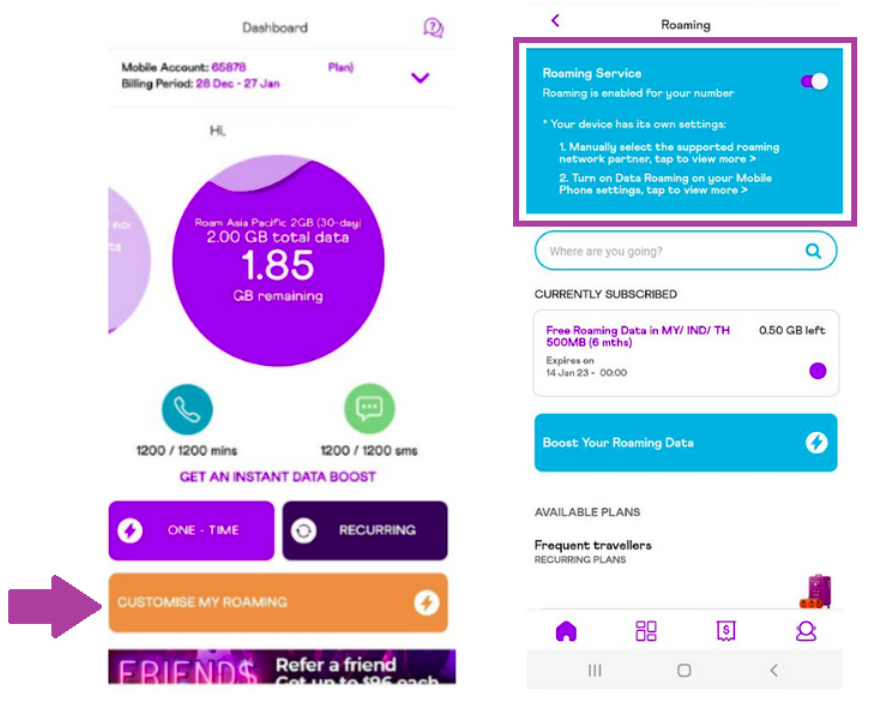
Description: The image above shows the MyRepublic Mobile App landing interface where the customer can enable/disable their roaming service.
2. Check that you have enabled roaming in your phone's settings
3. Restart your phone to re-hook to our network
- If you are still not able to hook on to any network, do choose the network provider manually on your phone
- Ensure that you are connected to our supporting roaming partner's network! A list of supported roaming partner's network can be found here. For 5G supported roaming partner's network can be found here.
- You may also try to toggle in between the different roaming partner's network to see which has the strongest connection

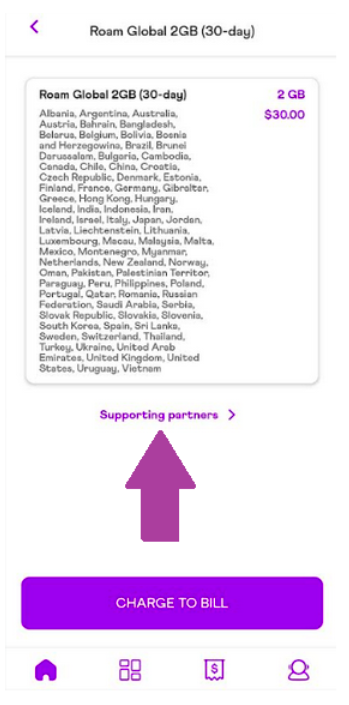
Description: The image above shows the MyRepublic Mobile App listing of our Roaming Partners.
3. If all else fail, perform a Network Reset on your phone
IOS (Apple) - Settings > General > Reset > Reset Network Settings
Huawei - Settings > System > Reset > Network Settings Reset
Samsung - Settings > General Management > Reset > Reset Network Settings
Sony - Settings > Wireless and Networks > More > Network Settings Reset
If you are able to hook on to our supporting roaming partner's network but not able to call SMS or data - refer to this article for more info.