Similar to swapping your physical SIM cards to a new phone, you’ll have to remove your eSIM profile from any existing device before installing it in a newer device. Please follow the below steps to transfer your eSIM.
Step 1: From Settings tap on Connections
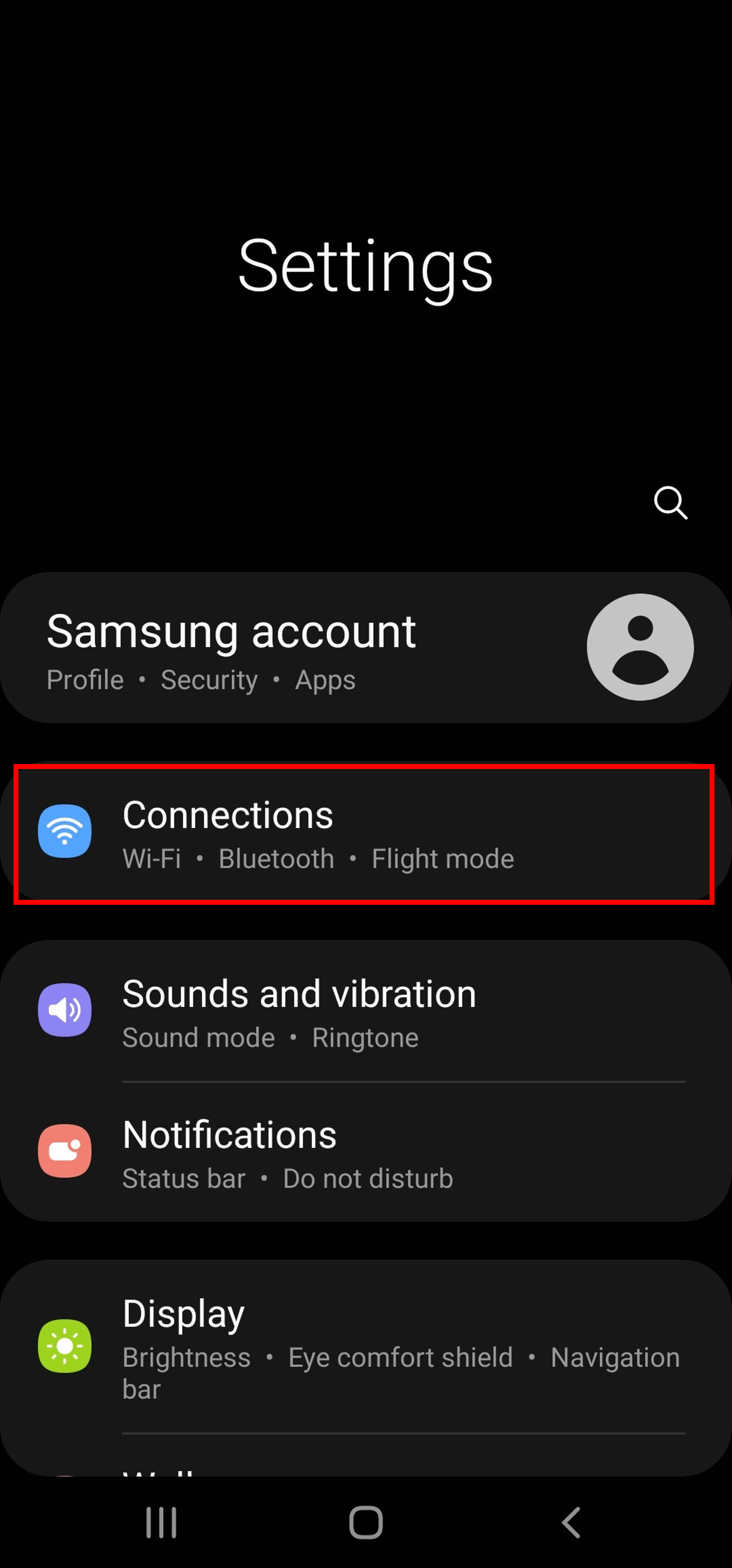
Description: The image above displays the screen for an Android device to select "Connections" when activating the eSIM.
Step 2: Choose SIM card manager
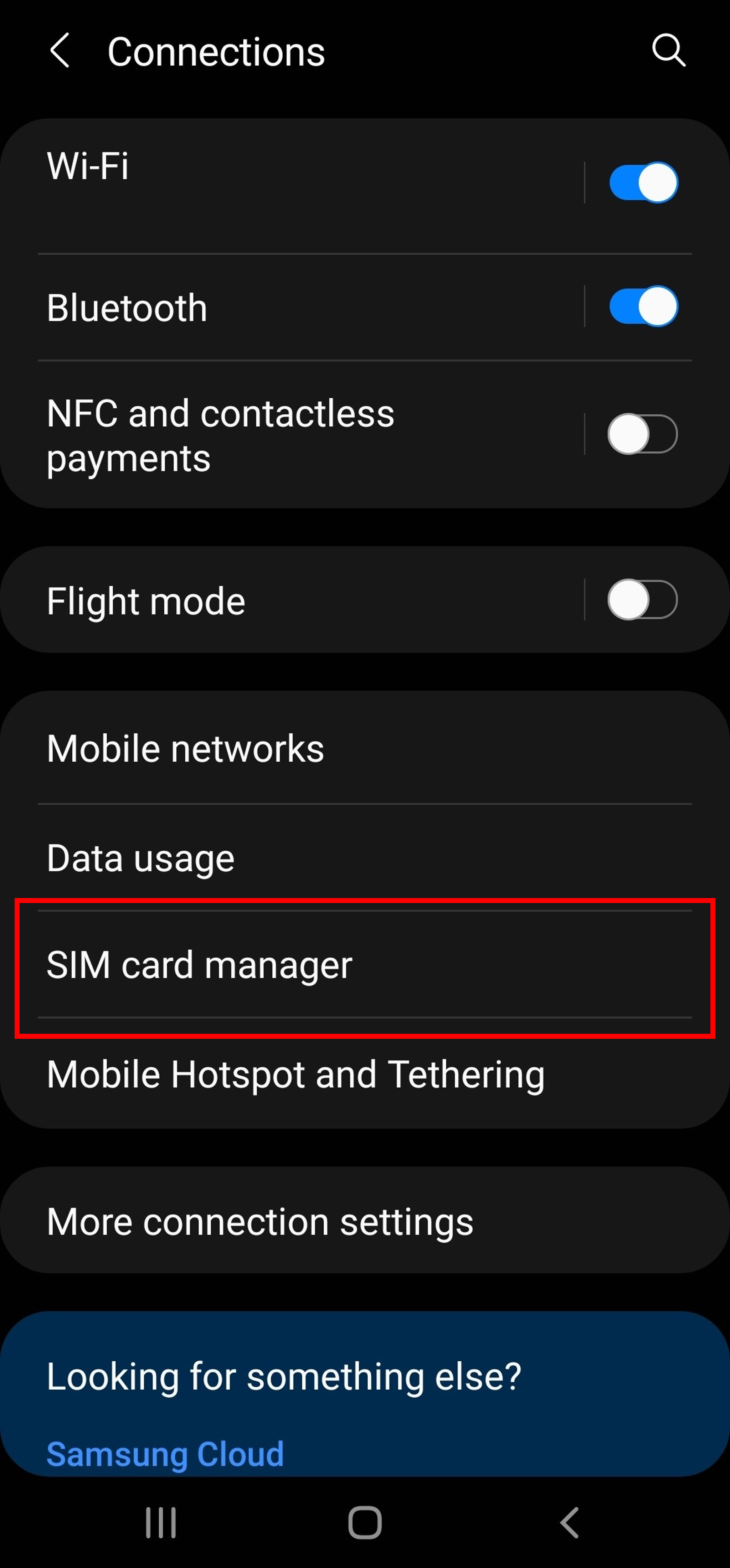
Description: The image above displays the screen for an Android device to select "SIM card manager" when activating the eSIM.
Step 3: Select the eSIM profile you want to delete
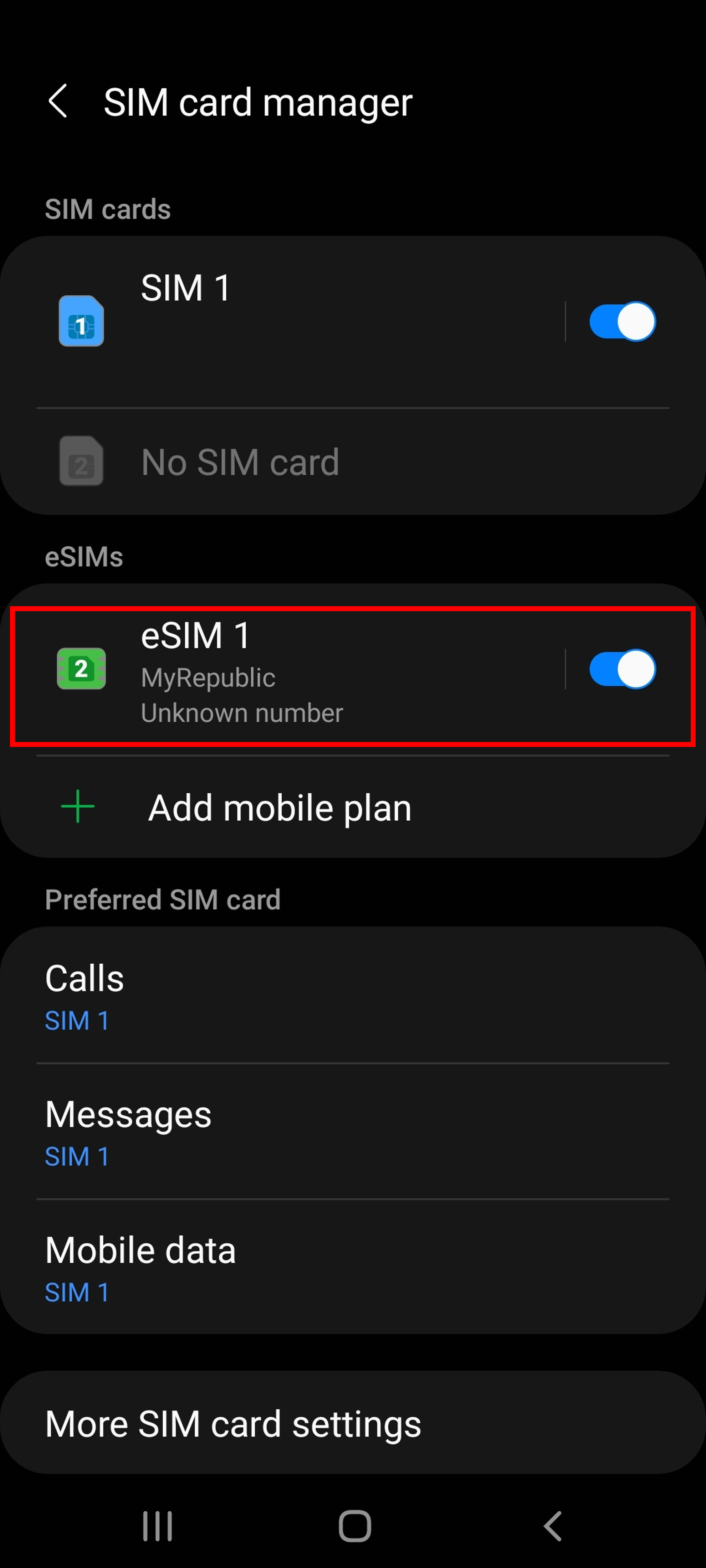
Description: The image above displays the screen for an Android device to select the eSIM profile to be deleted when activating a new eSIM.
Step 4: Tap on Remove
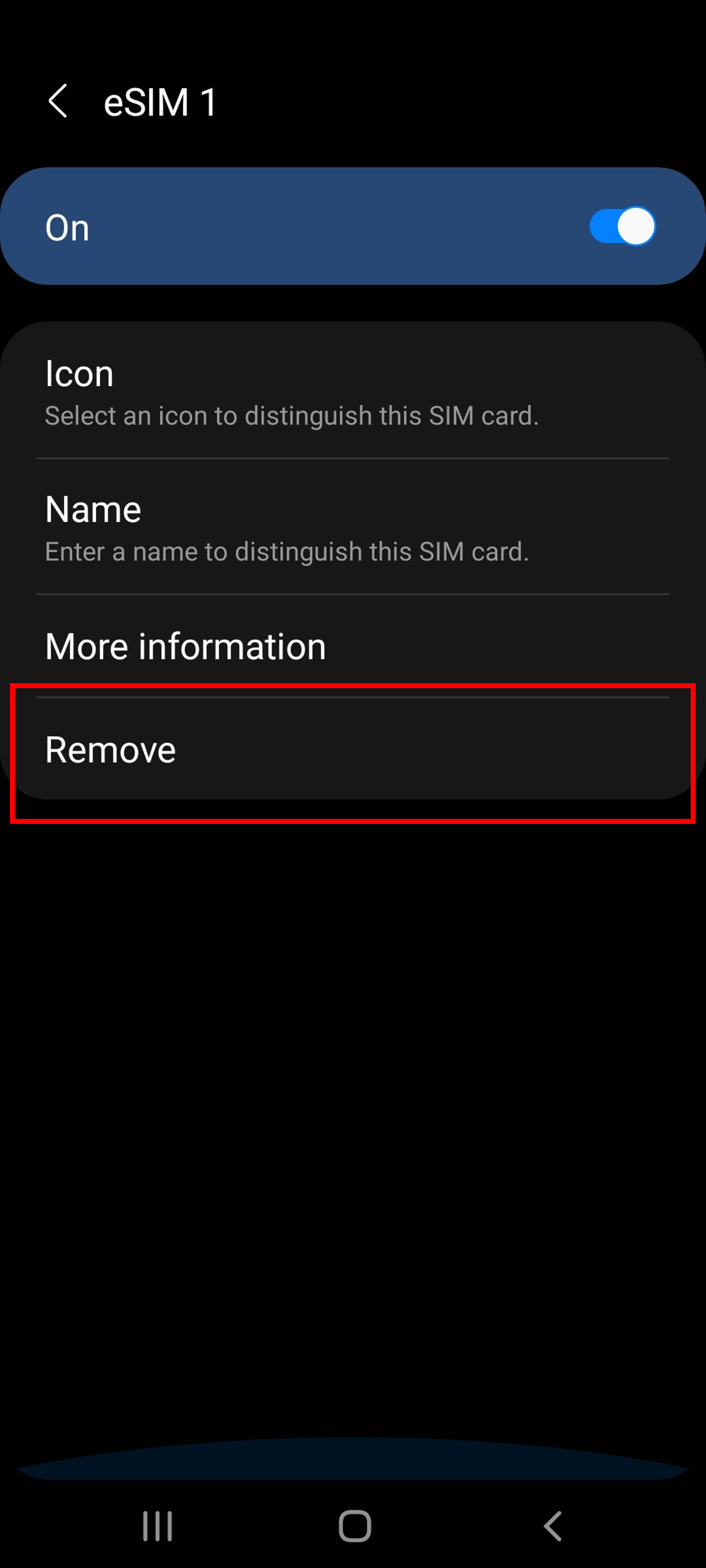
Description: The image above displays the screen for an Android device to select "Remove" when activating a new eSIM.
Step 1: From Settings select Mobile Data
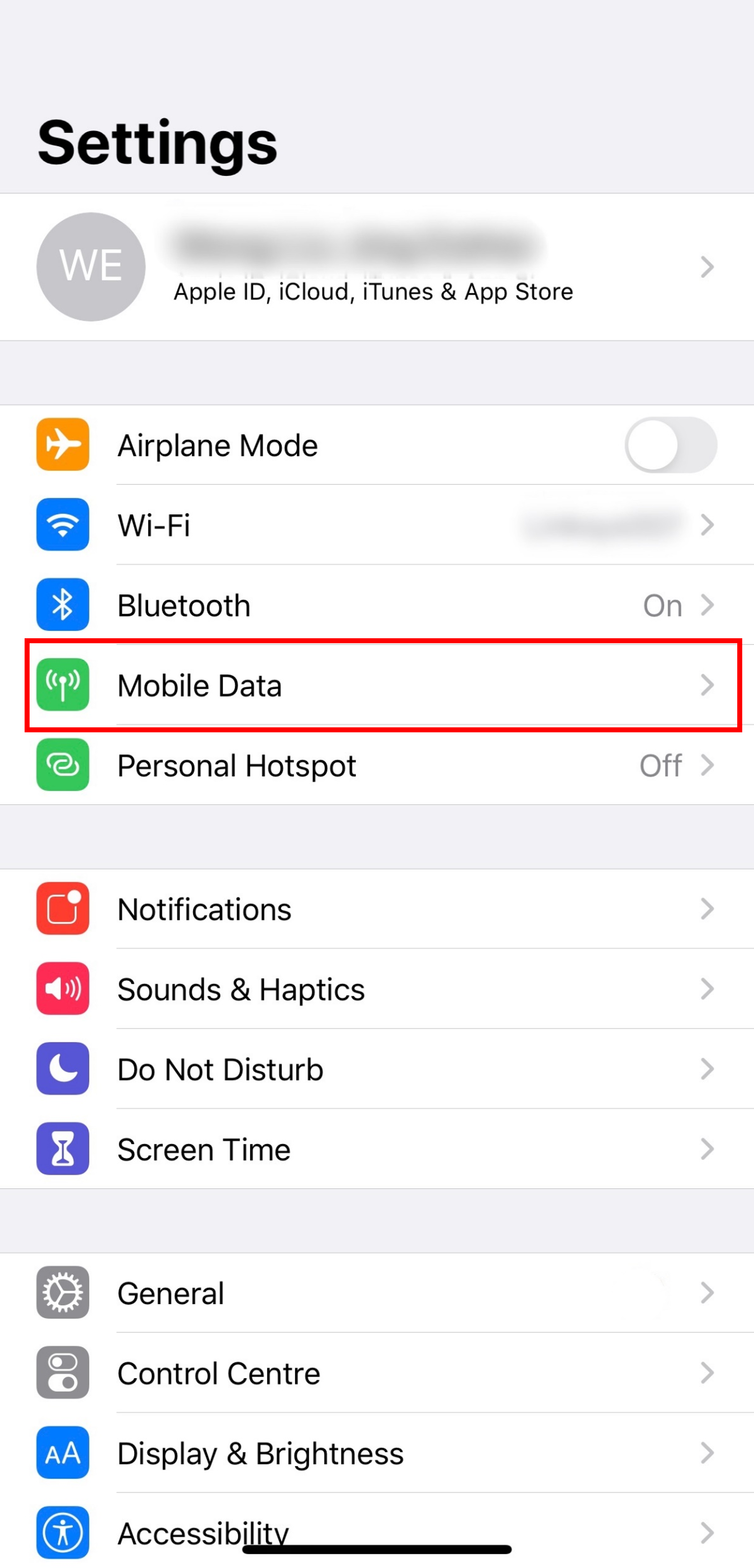
Description: The image above displays the screen for an iOS device to select "Mobile Data" when activating the eSIM.
Step 2: Select the eSIM profile you want to remove
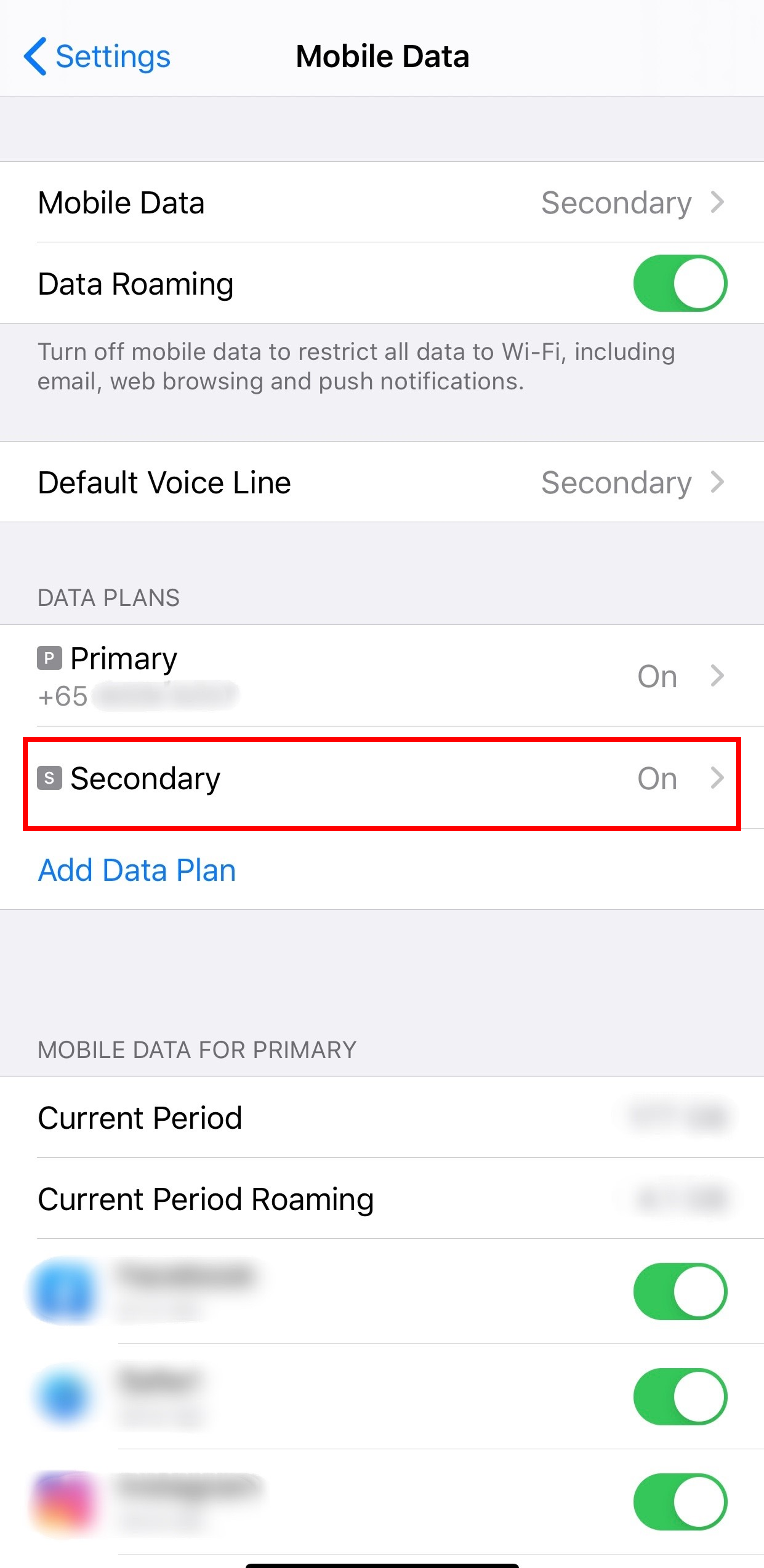
Description: The image above displays the screen for an iOS device to remove the eSIM plan when activating a new eSIM.
Step 3: Remove Data Plan
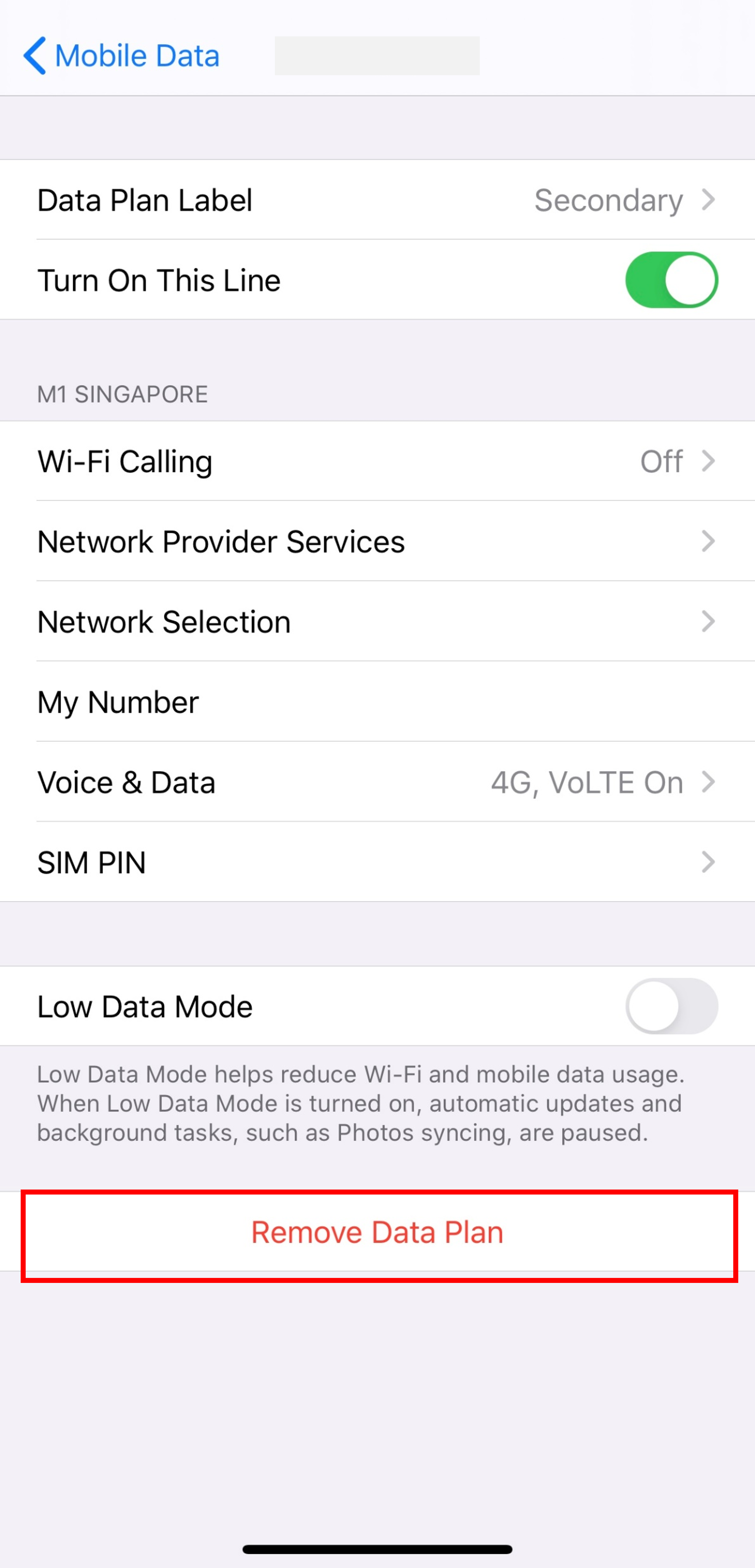
Description: The image above displays the screen for an iOS device to "Remove Data Plan" when activating a new eSIM.
Email subject title: Your order #XXXXXX is ready. Activate your eSIM
If you are unable to locate the email, you can request for the QR code to be resent to you Via the MyRepublic App under "SIM Management" or here if using a mobile device
Click here to check the steps to activate the eSIM on your new device.
eSIM profile installs are free for the first 2 times per mobile account. A nominal fee will be charged from the 3rd download onwards. Additionally, a MyRepublic eSIM can only be installed a maximum of 4 times before requiring a new eSIM replacement.